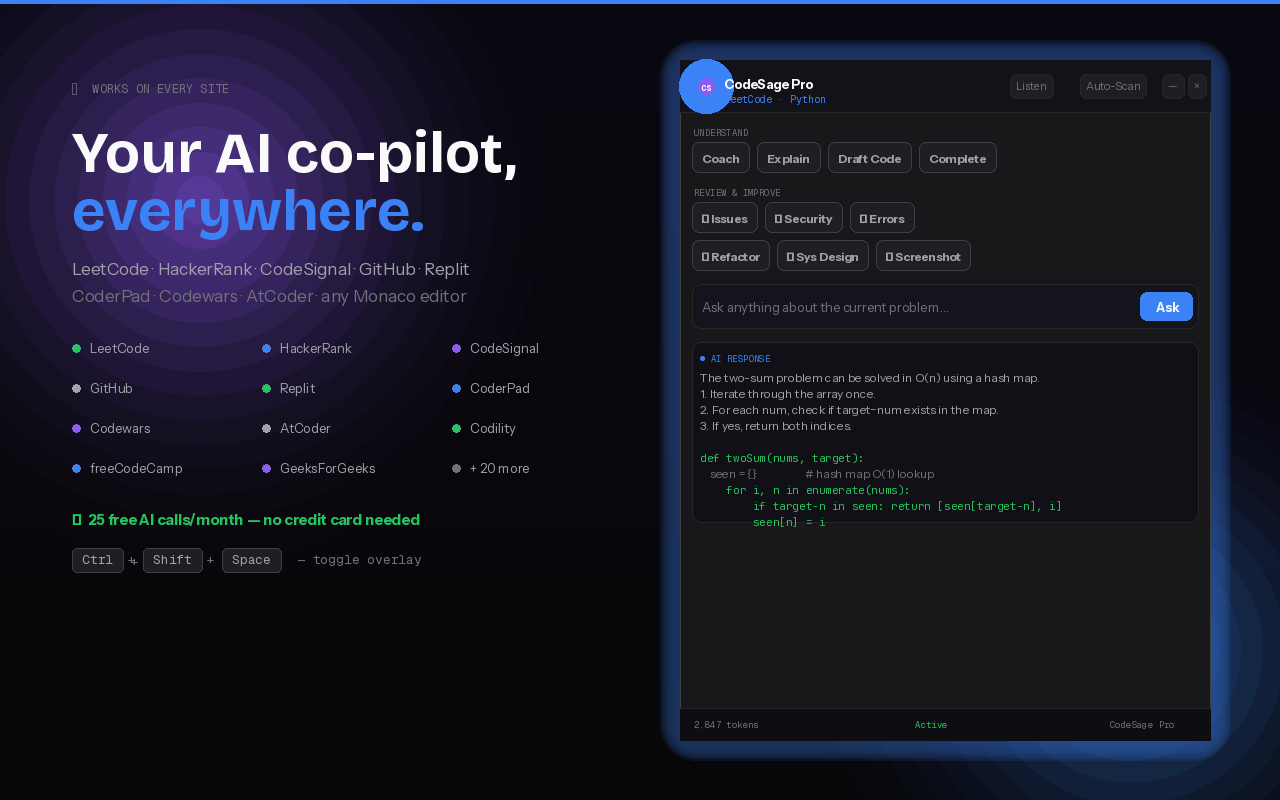
Real-time AI assistance during coding interviews and technical challenges. Screen-share invisible macOS overlay + Chrome extension. Powered by Claude AI.
Free download · License managed in-app · No account required
Three pillars that make CodeSage Pro the most effective interview companion available.
The macOS overlay uses NSWindow.sharingType = .none, making it invisible to Zoom, Meet, Teams, OBS, and all screen capture. Only visible on your physical display.
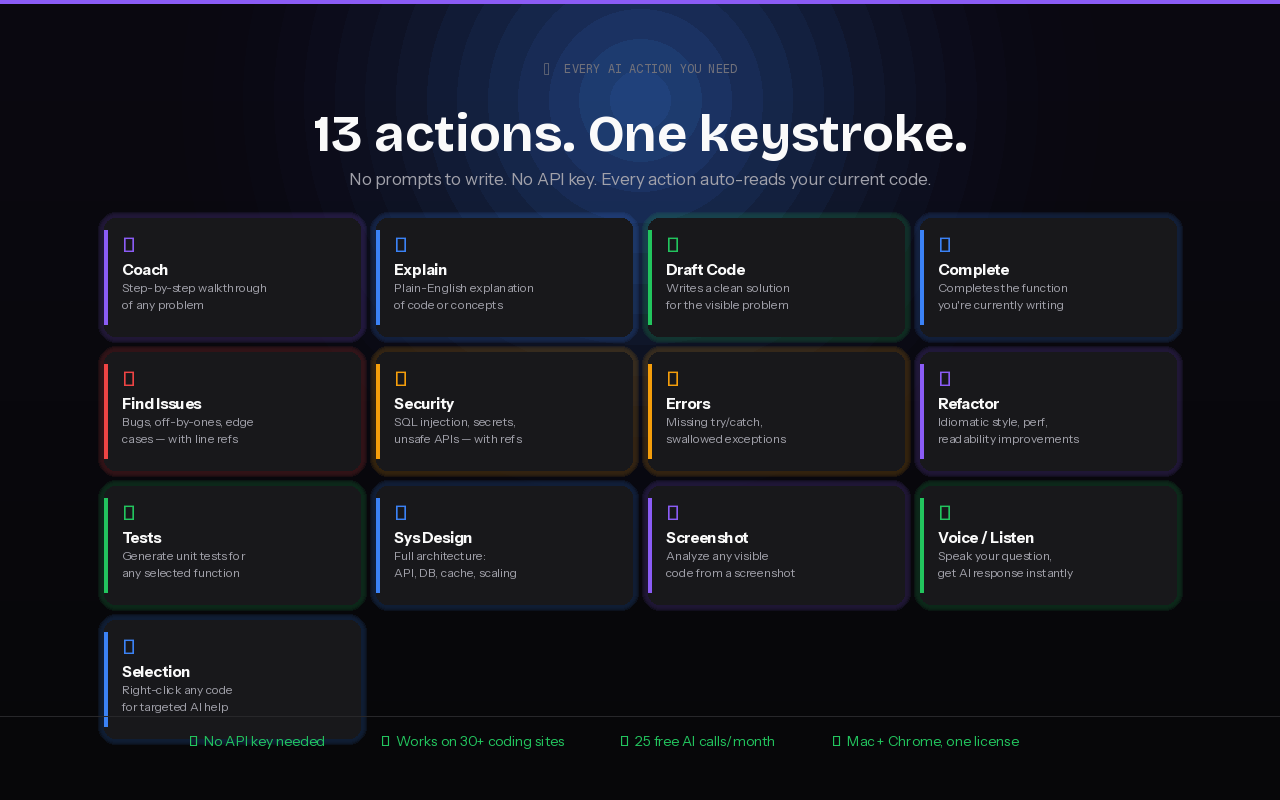
Coach, Explain, Draft Code, Find Issues, Security Review, Refactor, Generate Tests, System Design, and more — all powered by Claude AI.
No tracking, no analytics, no server. Your API key goes directly from your device to Anthropic's API. Mac app stores keys in macOS Keychain.
Every action is context-aware — it reads the code on your screen and delivers targeted assistance in seconds.
No account required — just your Anthropic API key.
5 Steps · Native Swift App
Download CodeSage Pro.dmg 551 KBClick the button above to download CodeSage Pro.dmg.
Open the DMG, drag CodeSage Pro to your Applications folder.
macOS will show an "unverified developer" warning. Right-click the app → Open → Open to bypass Gatekeeper.
Open Settings from the menu bar icon, paste your Anthropic API key. Stored securely in macOS Keychain.
Press Cmd+Shift+S to trigger Screen Recording permission. Go to System Settings → Privacy & Security → Screen Recording. Enable CodeSage Pro. Quit and relaunch.
4 Steps · Manifest V3
Download Chrome Extension (.zip) 81 KBUnzip the download, then navigate to chrome://extensions in Chrome.
Toggle on "Developer mode" using the switch in the top-right corner.
Click "Load unpacked" and select the chrome-extension folder from the download.
Click the toolbar icon, paste your Anthropic API key, and toggle the overlay ON.
CodeSage Pro only requests permissions when a feature that needs them is first triggered.
| Permission | When Triggered | Where to Grant |
|---|---|---|
| Screen Recording | First Cmd+Shift+S screenshot or Listen mode | System Settings → Privacy & Security → Screen Recording |
| Speech Recognition | First time Listen mode starts | System Settings → Privacy & Security → Speech Recognition |
| Microphone | Only when switching Listen source to Microphone | System Settings → Privacy & Security → Microphone |
Muscle memory for when every second counts.
Native macOS Shortcuts
Browser Shortcuts
Full support for major coding platforms, plus universal fallback for Monaco, CodeMirror, and Ace editors.
Universal fallback: auto-detects Monaco, CodeMirror, and Ace editor instances on any site.
Zero-server architecture means zero attack surface. Here's exactly how your data flows.
API key stored in chrome.storage.local. All calls go direct from your browser to api.anthropic.com — no middleman, no proxy.
API key stored in macOS Keychain, encrypted at rest by the Secure Enclave. Never written to plain text or config files.
Audio buffers, screenshots, and transcripts exist only in RAM. Never written to disk, never cached, never persisted.
Speech recognition on Apple Silicon runs entirely on-device via the Neural Engine. Audio never leaves your Mac.
Download CodeSage Pro and get AI-powered assistance in under five minutes. No account, no server, no tracking. License managed in-app.
Free download · Requires your own Anthropic API key · License managed in-app